
How to Batch Schedule Substack Notes (in Bulk) with Narrareach
Plan a week of Substack Notes in one sitting: import a CSV, attach Drive images, review the preview and schedule the whole batch with Narrareach.
Summary
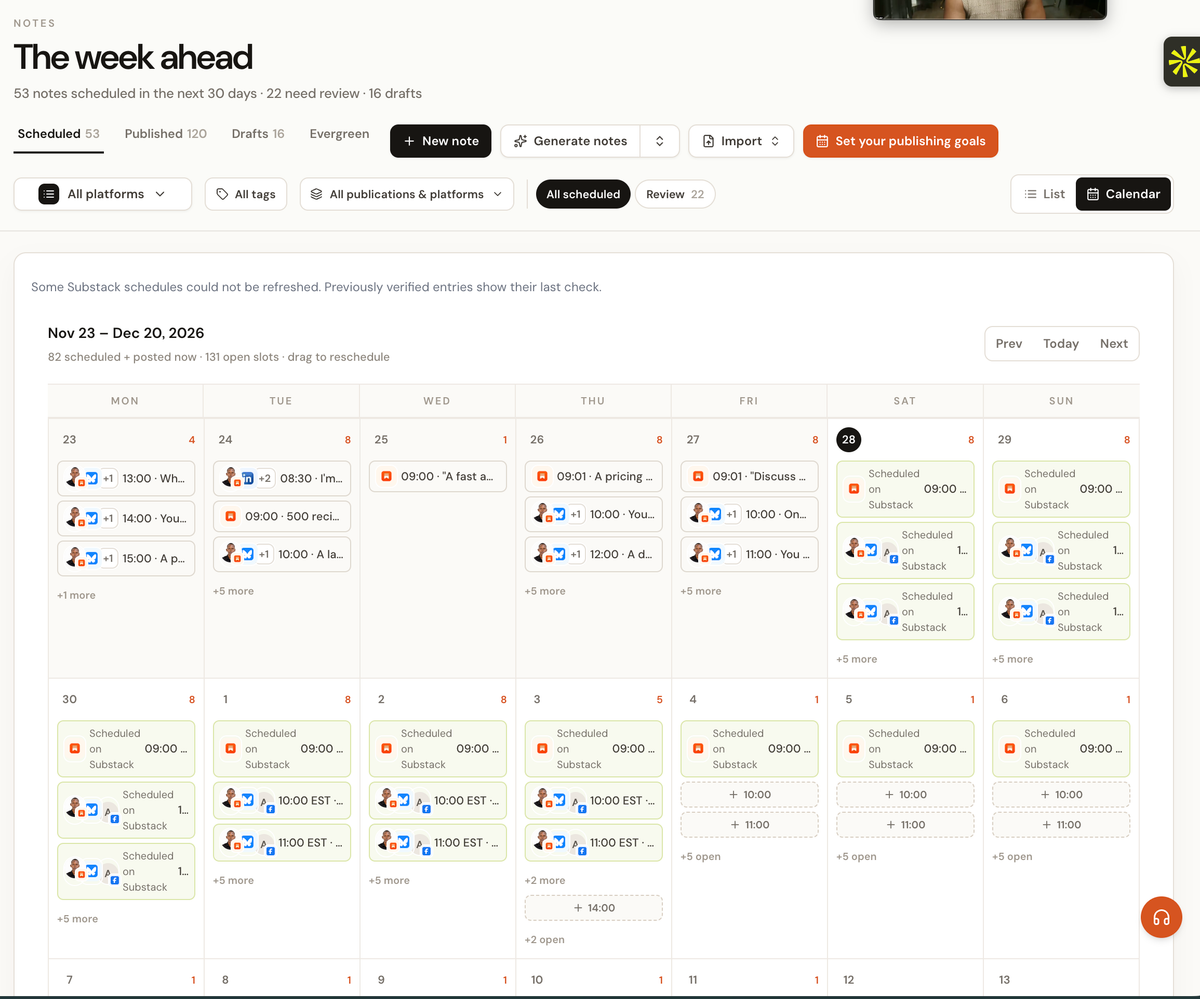
To batch schedule Substack Notes, write a week of Notes in a spreadsheet, import the CSV into Narrareach, review the preview, and schedule the batch in one step. Narrareach takes up to 200 Notes per import, can attach images from Google Drive links, and either keeps the dates in your file or spreads the Notes across your posting cadence. Notes due within 89 days go straight to Substack's own scheduler, so they publish even when your laptop is closed.
Substack's built-in scheduler handles one Note at a time. If you're still deciding between tools, start with the five ways to schedule Substack Notes. This guide is for the moment you want to plan a whole week in one sitting.
Why batch your Substack Notes
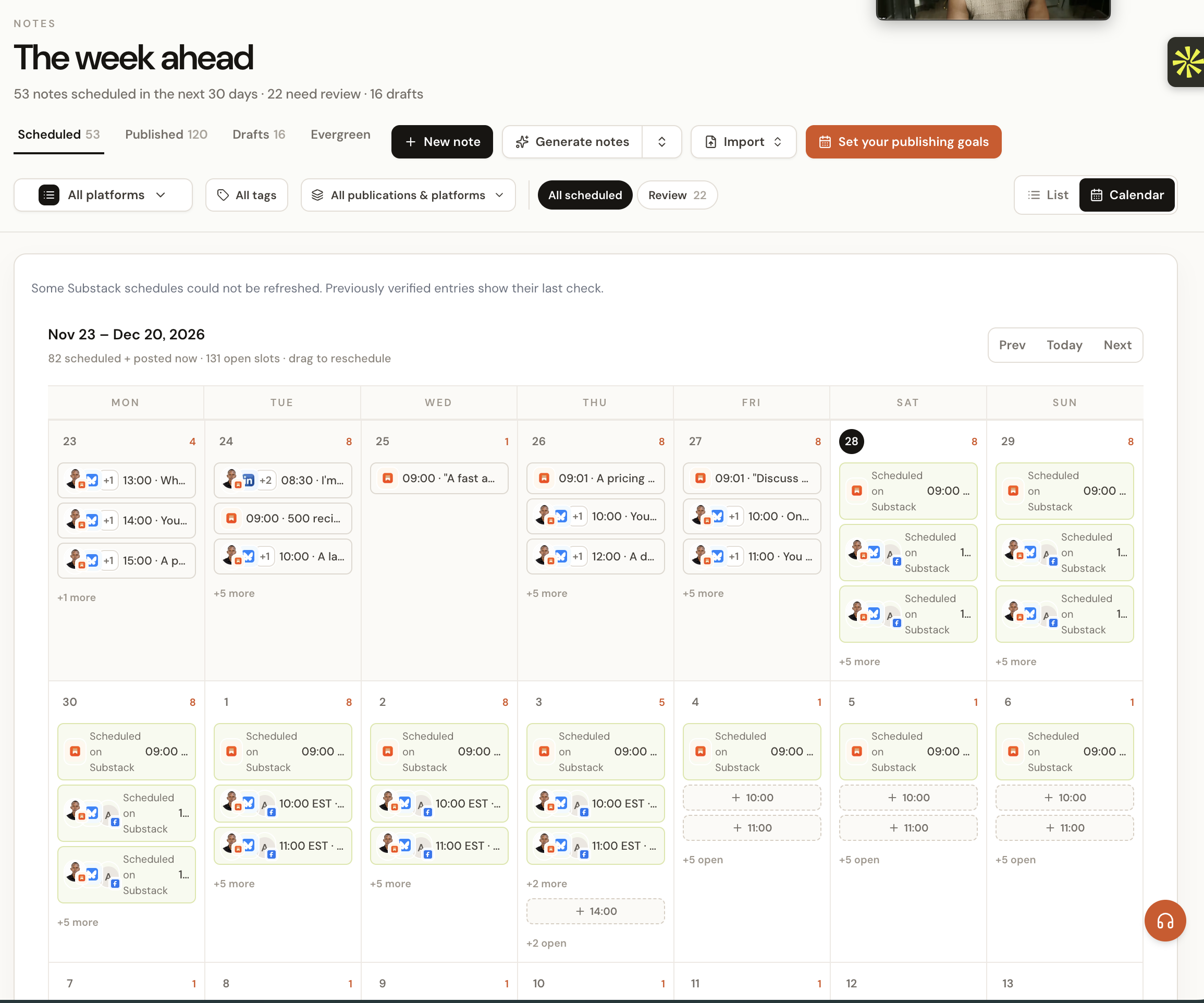
Writing Notes one by one, on the day, means deciding what to say every morning. Batching moves that decision to one planning session a week. You also see the whole week side by side, which makes it easy to catch two Notes that repeat the same point or three that all push the same article.
A simple weekly batch might mix three kinds of Note:
- a teaser for your latest article;
- a standalone idea or tip that doesn't need a click to be useful;
- a question that invites replies.
Leave a few gaps for live reactions and restacks. Batching should take the routine posts off your plate, not replace conversation.
Step 1: Prepare your Notes in a CSV
Use one row per Note. Only the content column is required for Substack; the others are optional.
| Column | What it does |
|---|---|
content | The text of the Note |
platforms | Where it publishes, for example SUBSTACK |
scheduled_at | A fixed publishing time, if you want one |
timezone | The time zone for that row, for example America/New_York |
image_urls | Image links, including shared Google Drive links |
content_linkedin | A separate version for LinkedIn, if you also post there |
Here's a small example with no fixed times:
content,platforms,timezone
"Before quoting a project, ask what decision the finished work needs to support.",SUBSTACK,America/Toronto
"A clearer brief names the reader, the decision and the person who approves the work.",SUBSTACK,America/Toronto
"Which question most often changes your understanding of a new project?",SUBSTACK,America/Toronto
Rows without a scheduled_at time go into your next open queue slots when you schedule the batch. Add a time to any row that has to go out at a specific moment, such as a launch.
Step 2: Add images from Google Drive (optional)
To attach an image, put its link in the image_urls column of the right row. For Google Drive, set the file's sharing to Anyone with the link. A file that opens for you because you're signed in may still be private to the importer.
Narrareach accepts JPEG, PNG, GIF and WebP. When you schedule, it saves a publishing copy of each image, so editing or replacing the Drive file later won't change a Note that's already scheduled. More detail is in the Google Drive bulk scheduling guide.
Step 3: Import and review the preview
Upload the CSV in Narrareach. Before anything is scheduled, the preview shows every row as ready, a warning or an error, with its text, destination and image.
- Check that the number of rows matches what you meant to import.
- Fix any errors, such as an empty Note or an invalid time.
- Read the warnings, including rows with no time set.
- Look at each image next to its Note. A valid link on the wrong row is still a mistake.
Review the writing too, not just the format. A row can import cleanly and still mention last week's news or repeat a hook you used yesterday.
Step 4: Choose how the batch is timed
If your file has dates, you have two choices:
- Keep CSV dates uses the exact times in your spreadsheet.
- Fit to my cadence ignores those times and places the Notes into your regular posting slots instead.
Rows without dates always go into your next open slots. To pick those slots, set a cadence around the times your readers are most active; the best time to post on Substack guide covers how to find them.
Step 5: Schedule the batch and check the queue
Confirm the batch, then open your queue or calendar and check the assigned times. Notes scheduled within 89 days go straight to Substack's own scheduler, so they publish whether or not your computer is on. Notes planned further out wait in your Narrareach queue and are handed to Substack automatically once they're inside that window.
If an import or scheduling step is interrupted, look at what reached the queue before you try again. Re-uploading the whole file can create a second copy of Notes that already went through.
Repeat it each week
Once the first batch works, the routine is short: keep a running spreadsheet of ideas, pick next week's Notes in one session, import, review, schedule. Over time, check which Notes brought replies or new subscribers and write more like them.
If you also publish on LinkedIn, add a content_linkedin column so the same idea goes out in a version that suits that audience. See cross-posting to LinkedIn.
For the full feature overview, read how Narrareach schedules Substack Notes.
Schedule your first batch free
Audience Builder is US$19.99 per month, billed monthly, or US$199 per year. Every plan schedules Substack Notes and articles. Seven-day free trial, no card required.
Frequently asked questions
Can you schedule Substack Notes in bulk?
Not in Substack itself, which schedules one Note at a time. With Narrareach you can import up to 200 Notes from a CSV, review them and schedule them in one step.
How many Notes can I import at once?
Up to 200 rows per import. For a bigger file, split it into smaller batches and check each preview count.
Do I have to set a time for every Note?
No. Rows without a time go into your next open queue slots. Add a time only to Notes that must go out at a set moment.
Will my Notes publish if my laptop is closed?
Yes, once they're handed to Substack's scheduler. Notes due within 89 days are handed over when you schedule them; later ones are handed over automatically as their date gets closer.
Can I bulk schedule Notes with images?
Yes. Add image links, including shared Google Drive links, in the image_urls column. Narrareach saves a copy of each image when you schedule.
Can I edit a Note after scheduling the batch?
Yes. Open it from your queue or calendar to change the text, image or time before it publishes.
What's the difference between this and Substack's own scheduler?
Substack schedules one Note at a time from its composer. Narrareach adds the batch: a spreadsheet import, a preview, cadence-based timing, Drive images and articles on the same calendar. The guide to scheduling Substack Notes compares both, along with the other common tools.